
So if your PC feels sluggish, memory is always occupied, and bloatware keeps piling up. Let me show you Sparkle, it fixes all of that in minutes. If this guide helps you out, please share it around. This tool is genuinely a game-changer for Windows optimization.
What Exactly Is Sparkle?
Sparkle is a free, open-source Windows optimization tool created by Parcoil. It combines debloating scripts, performance tweaks, cleaning utilities, and privacy controls into one simple interface. You get a professional-grade optimizer without paying a single penny.
The best part? You can see the exact code on GitHub since it’s completely open-source. That means it’s auditable, trustworthy, and actively maintained by the community.
The Dashboard and System Overview
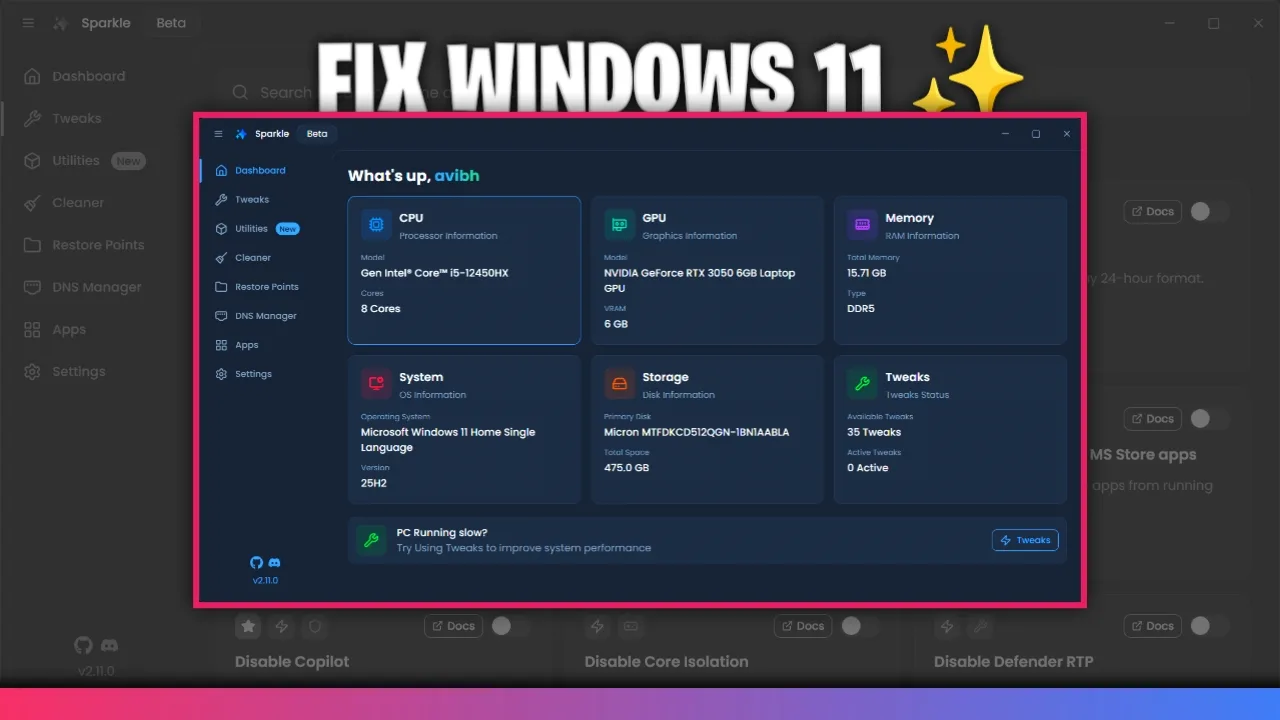
When you first open Sparkle, you’ll land on the dashboard. It displays your CPU, GPU, RAM, storage, and overall system information right away. You can instantly see your current performance metrics and available optimizations.
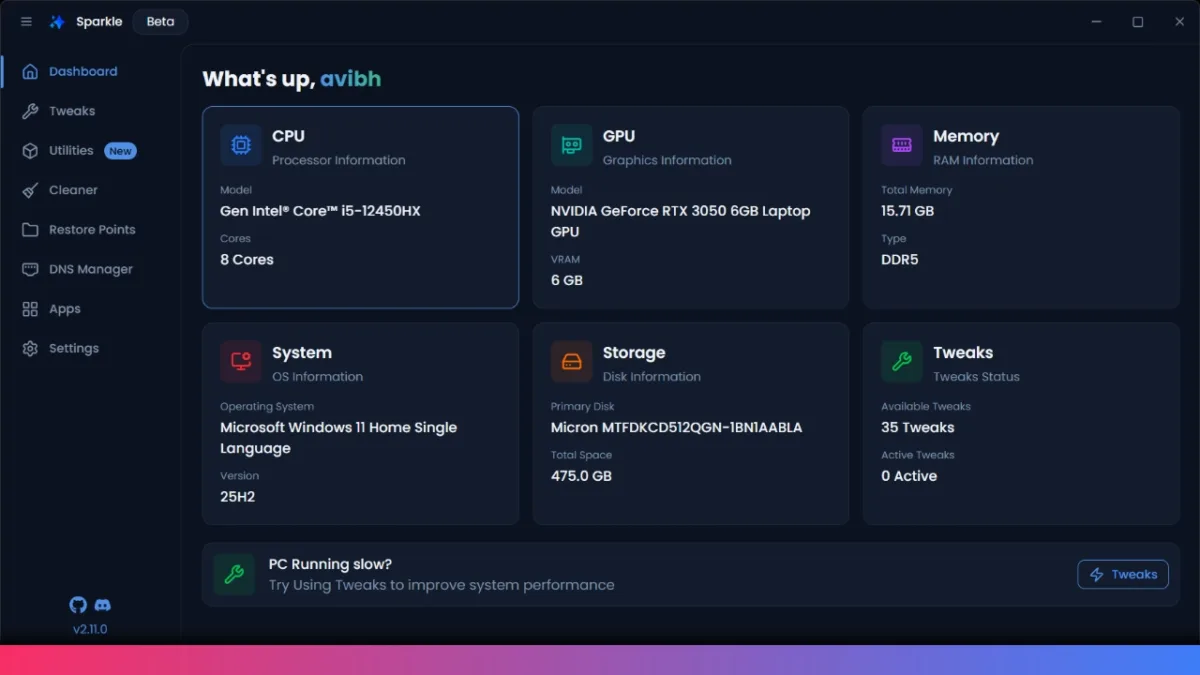
Below that, you’ll notice a helpful question: “PC running slow? Try using tweaks to improve system performance.” Just click on tweaks, and you get redirected to the optimization section.
Performance Tweaks Explained
The tweaks section organizes optimizations across several categories. You can find performance, appearance, privacy, gaming, network, and GPU adjustments all in one place. Here are some tweaks I highly recommend enabling.
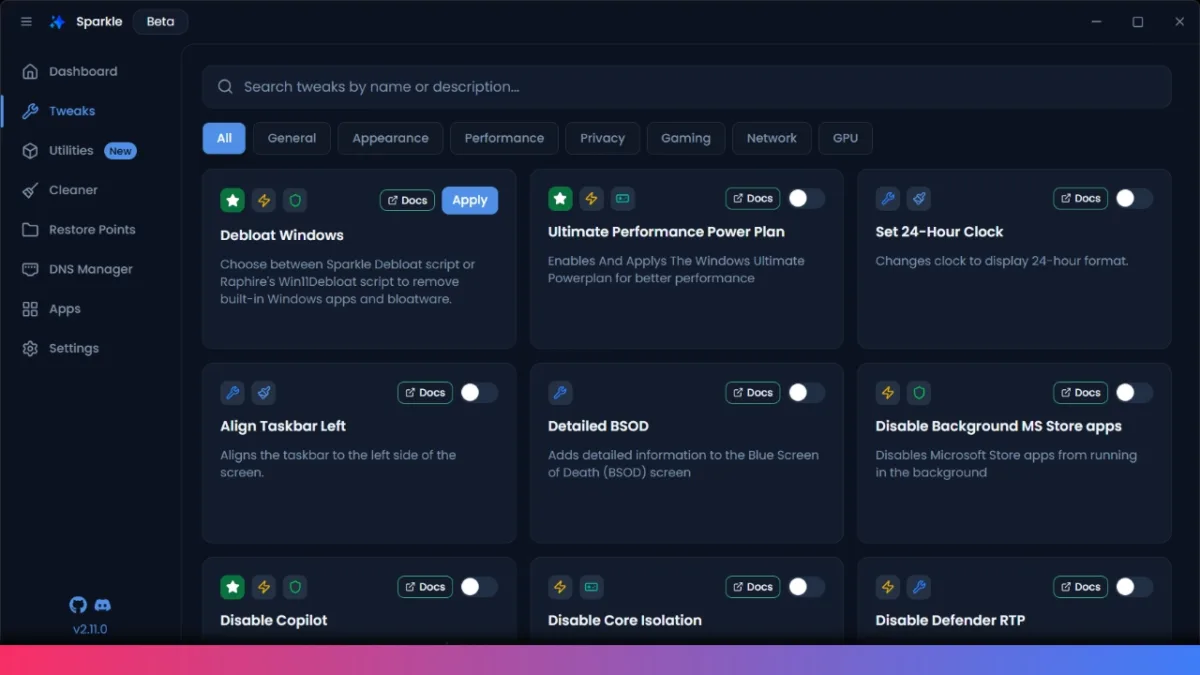
For Desktop Users:
Enable Ultimate Performance Power Plan for the absolute best desktop performance. This gives your system the maximum processing power available. It’s perfect for gaming rigs and workstations where power consumption isn’t a concern.
General Optimization Tweaks:
You should disable background Microsoft Store apps; these run silently and consume resources. Disable Copilot if you don’t use it. Turn off location tracking to improve privacy. Disable
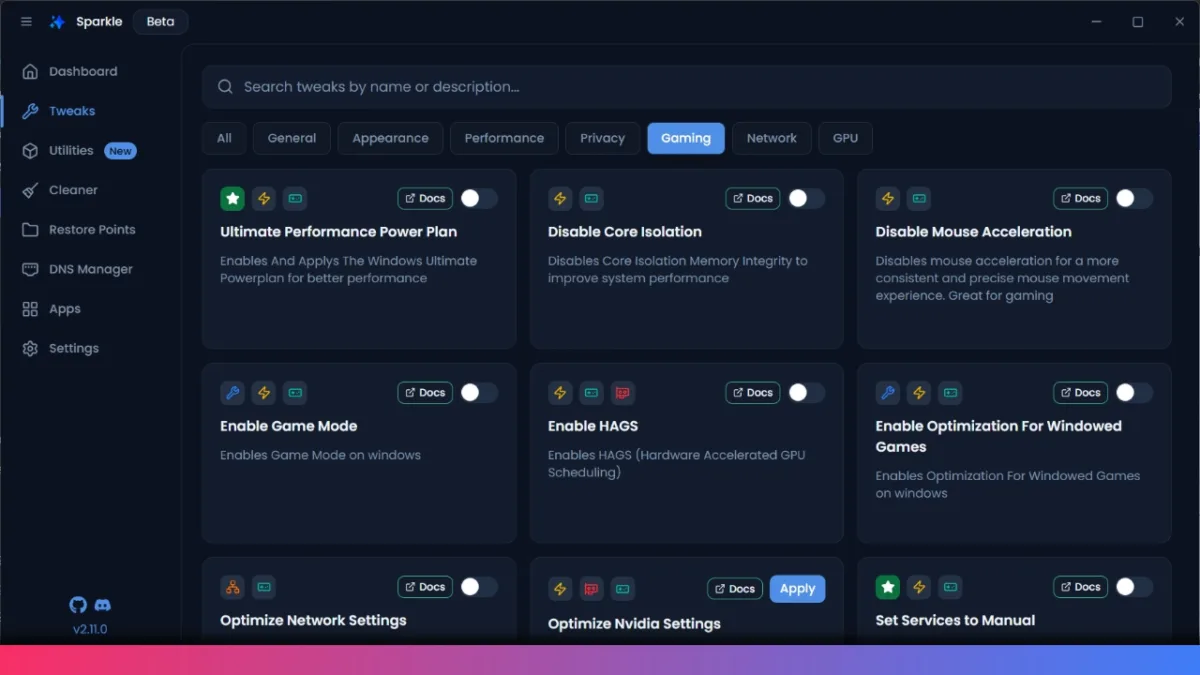
For Gamers:
Disable mouse acceleration if you’re gaming competitively. This ensures your mouse moves exactly as intended without smoothing. Enable optimization for windowed games so gaming in windowed mode performs smoothly.
Debloat Windows – The Most Powerful Feature
Now here’s where Sparkle really shines. The debloat Windows option is incredibly powerful and easy to use. You can click Apply and see two debloat methods available.
Sparkle’s debloat script lets you hand-pick which apps to keep. Rapfire script removes most built-in Windows apps quickly. Both methods remove bloatware and improve privacy. The Sparkle method is recommended because you have full control.
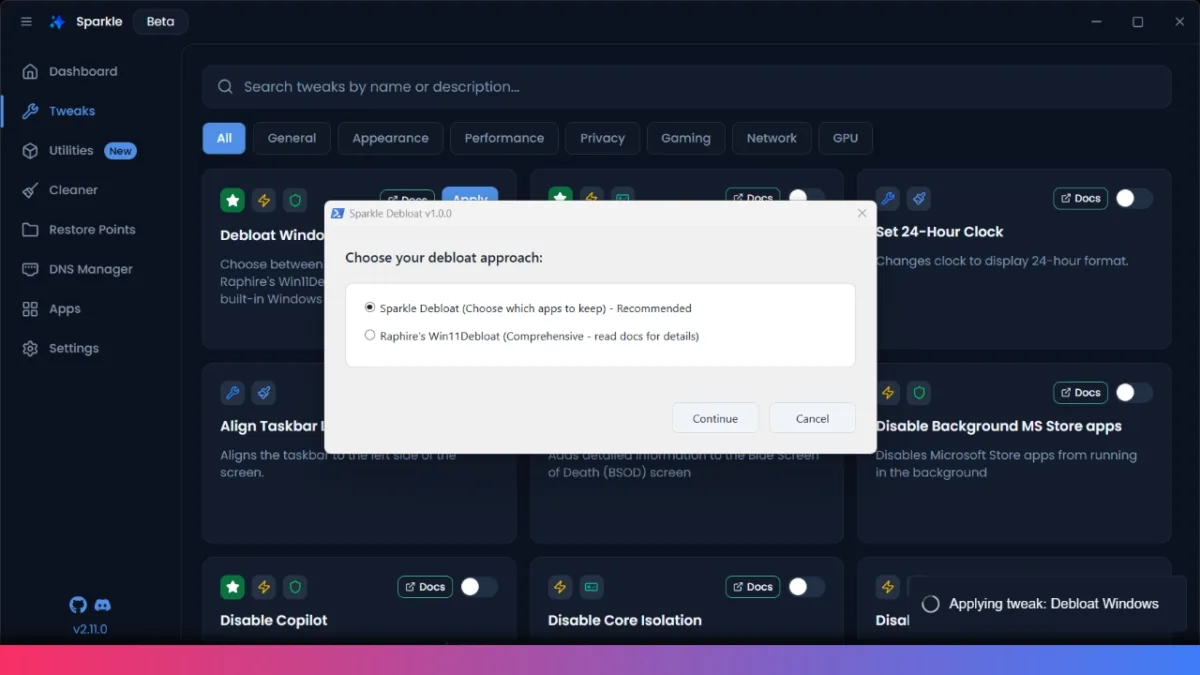
When you start the process, you’ll see PowerShell commands running in the background. This transparency shows exactly what’s being removed. You can then select individual apps you don’t need.
Common apps to remove include 3D Builder, 3D Viewer, Amazon AppStore, Bing apps, Candy Crush, Cortana, Disney Plus, Facebook, Maps, Microsoft Teams, and Netflix. You can also remove Xbox services if you don’t game.
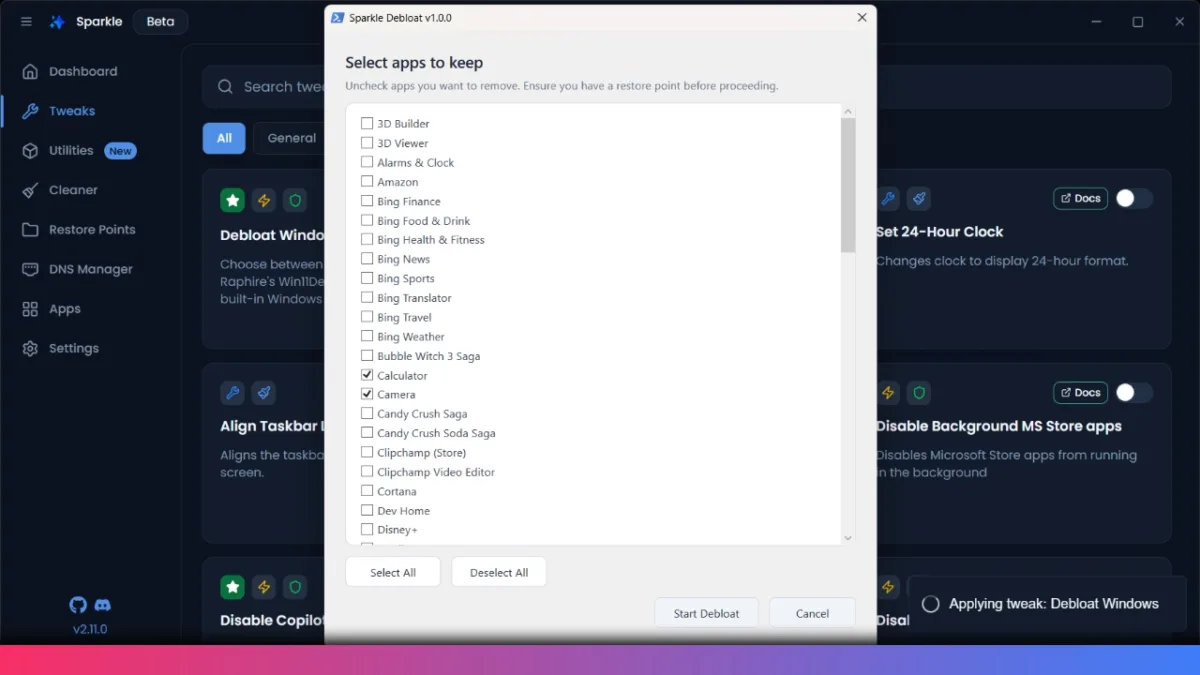
Once you’ve selected everything, click Start De-bloat. The tool runs automatically, removing bloatware piece by piece. It’s truly effortless to debloat your entire PC with just a few clicks.
Create a Restore Point First (This Is Critical)
Before doing anything with Sparkle, go to your start menu and search for “restore point.” Create a restore point before starting the debloating process. This is absolutely crucial.
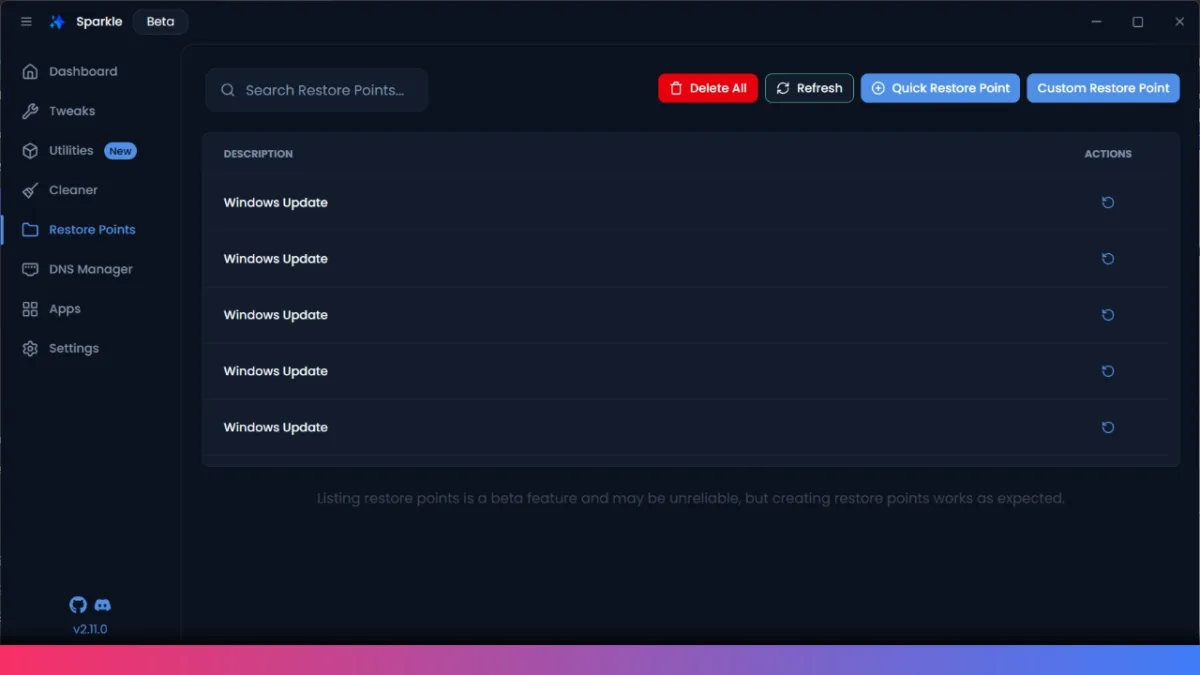
Sparkle is powerful, and that power can sometimes cause issues if you’re not careful. Creating a restore point gives you an escape hatch. If something breaks, you can roll back to your previous system state instantly.
Utilities Section for System Maintenance
You’ll find the utilities option on the left side. Here you can access powerful maintenance tools. You can clean temporary files easily. Delete prefetch files to remove Windows cache data.
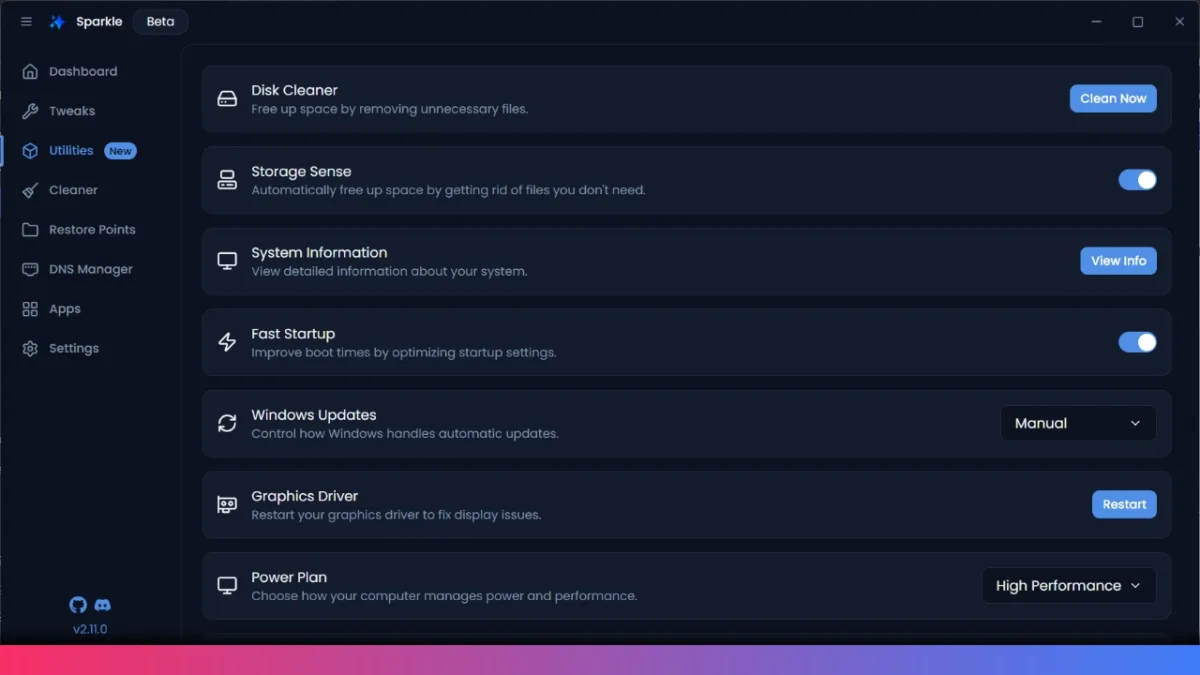
The Cleaner tool allows you to empty the Recycle Bin, clear the Windows Update cache, and clear the thumbnail cache. These operations free up gigabytes of disk space over time.
You can also disable Windows updates if needed, restart your graphics driver, and manage fast startup settings. The System File Checker and Check Disk tools are also available here for system repairs.
Install Apps Instantly Without Browser Searching
The apps section is incredibly convenient. You can search for popular applications, and Sparkle can automatically install or uninstall them. Just check Firefox, Brave, Google Chrome, or any other app you want.
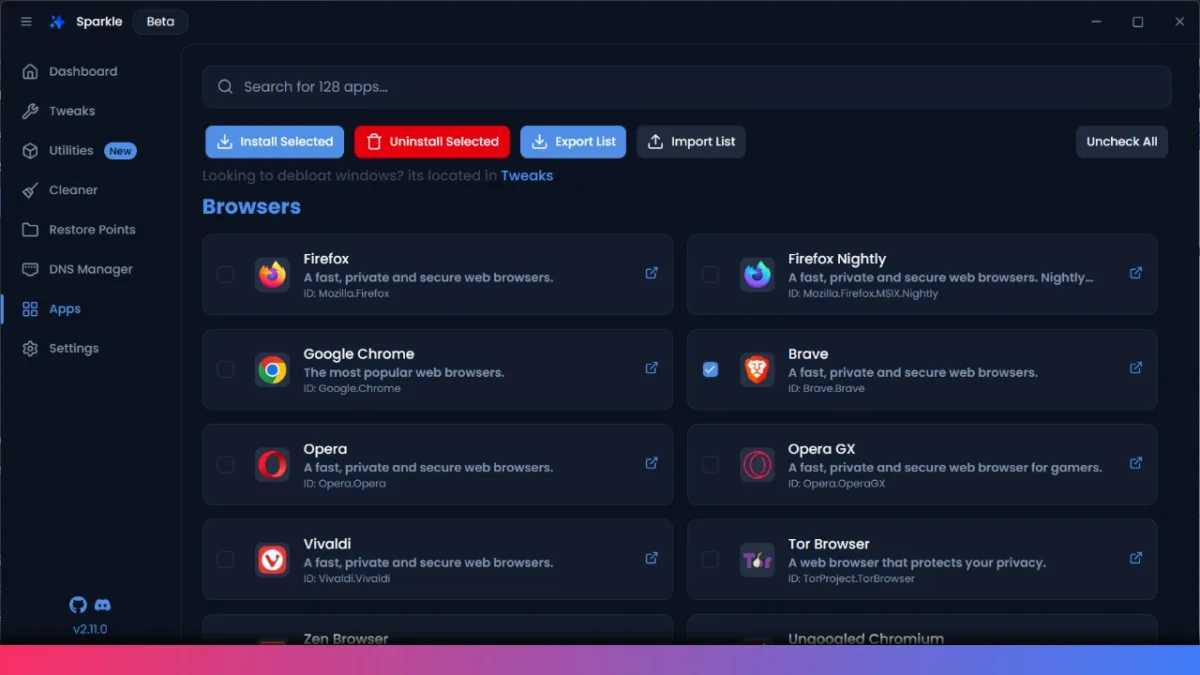
You don’t have to visit websites, download installers manually, or deal with setup wizards. Just select apps and click install selected. Sparkle handles everything using Windows’ built-in Winget installer.
After Debloating – What Happens Next
Once Sparkle finishes debloating, check your installed applications list. You should see significantly fewer apps than before. Most bloatware should be gone. After debloating, you’ll usually need to restart your computer to complete the process.
Just click the restart button on the left side. After restarting, every app you selected for removal should be completely gone. Your PC will feel noticeably lighter and faster.
How to Install Sparkle on Your PC
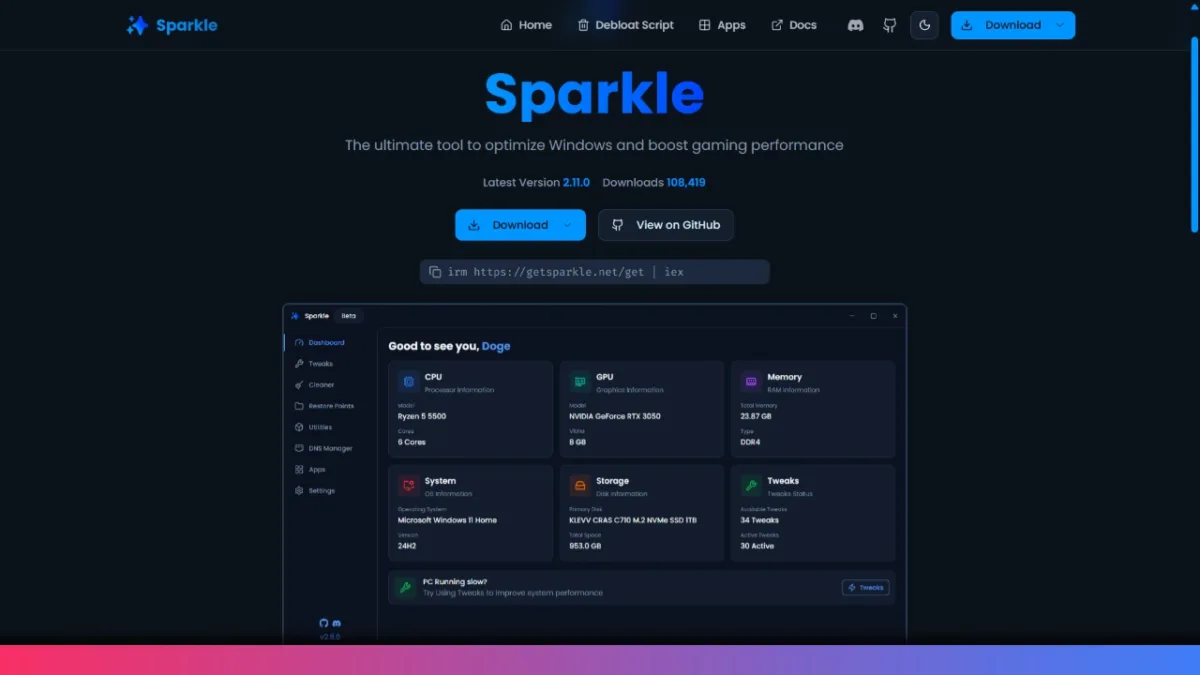
Installation is straightforward. Visit the official GitHub repository at github.com/parcoil/sparkle or the website at getsparkle.net. Download the installer or portable version.
You’ll find the sparkle.exe file in the releases section. Download it and open your downloads folder. Double-click the sparkle setup file to install it.
After installation, search for Sparkle in your Start menu. Click the app and approve the admin prompt. That’s it—you’re ready to optimize.
Uninstalling Sparkle If You Change Your Mind
If you decide you don’t want Sparkle anymore, it’s easy to remove. Go to Settings, then Apps, then Installed Apps. Find Sparkle in the list, click the three dots, and select uninstall.
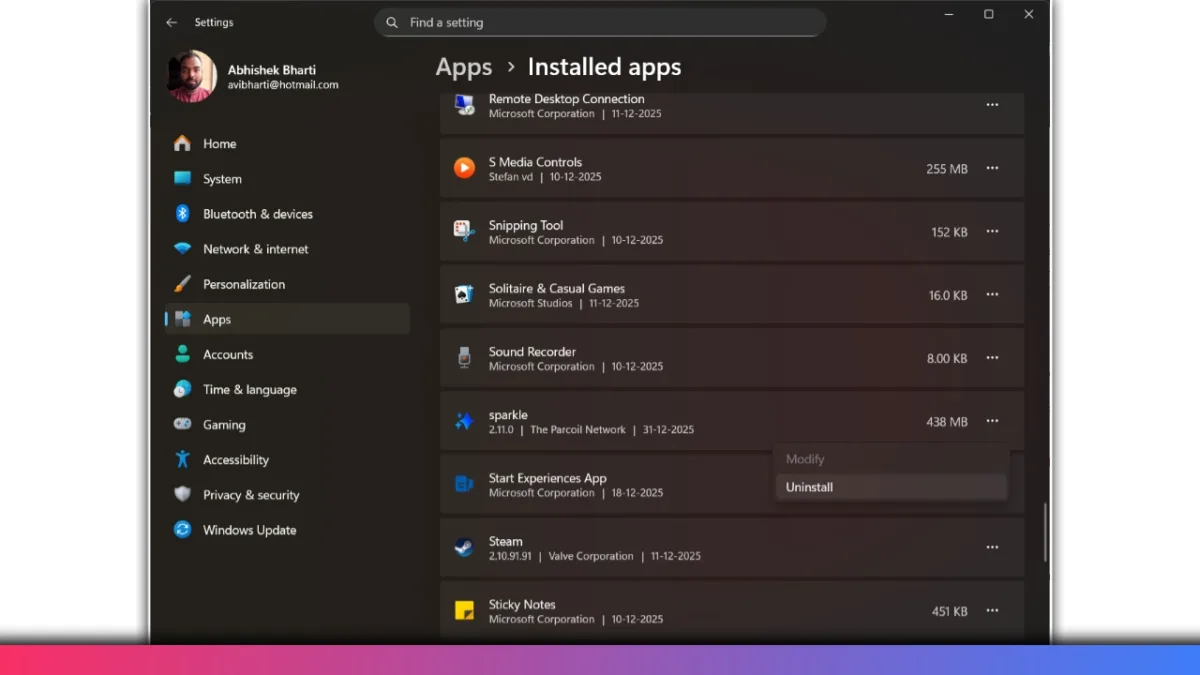
You can completely remove Sparkle from your system without any residual files. Uninstalling doesn’t affect the tweaks you applied—those remain on your system.
YOU MAY LIKE THIS:
- ColorOS 17 Update Schedule: 50+ Oppo Phones and Expected Rollout Dates
- PhonePe UPI Rolls Out on Nokia and HMD Feature Phones: Full Device List
- UPI on HMD, Nokia Feature Phones Will Stop Working After August 1
- How to Play Brown Dust 2 on Linux Using Heroic Games Launcher
- Google’s Leaked “Aluminium OS” Could Be the Biggest Android Shift in Years
Why Choose Sparkle?
Sparkle is open-source, which means it’s auditable and trustworthy. The code is public on GitHub, so you can see exactly what it does. No hidden malware, no spyware, no sketchy behavior.
The tool is completely free with no ads, no premium tier, and no upsells. It’s still in beta, but it’s already stable and well-designed. The interface is clean and intuitive compared to other optimization tools.