
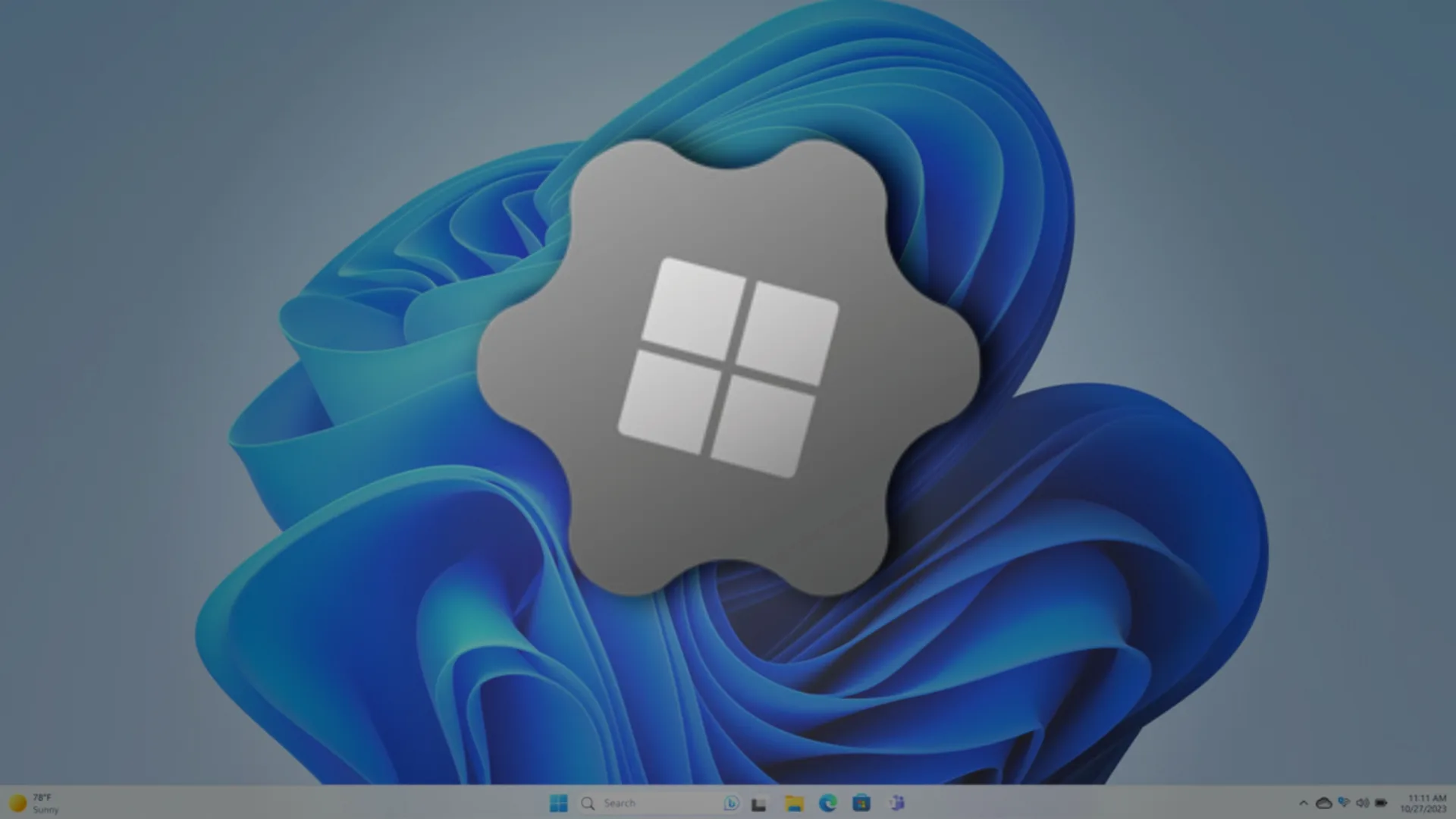
Getting Started with Wintoys
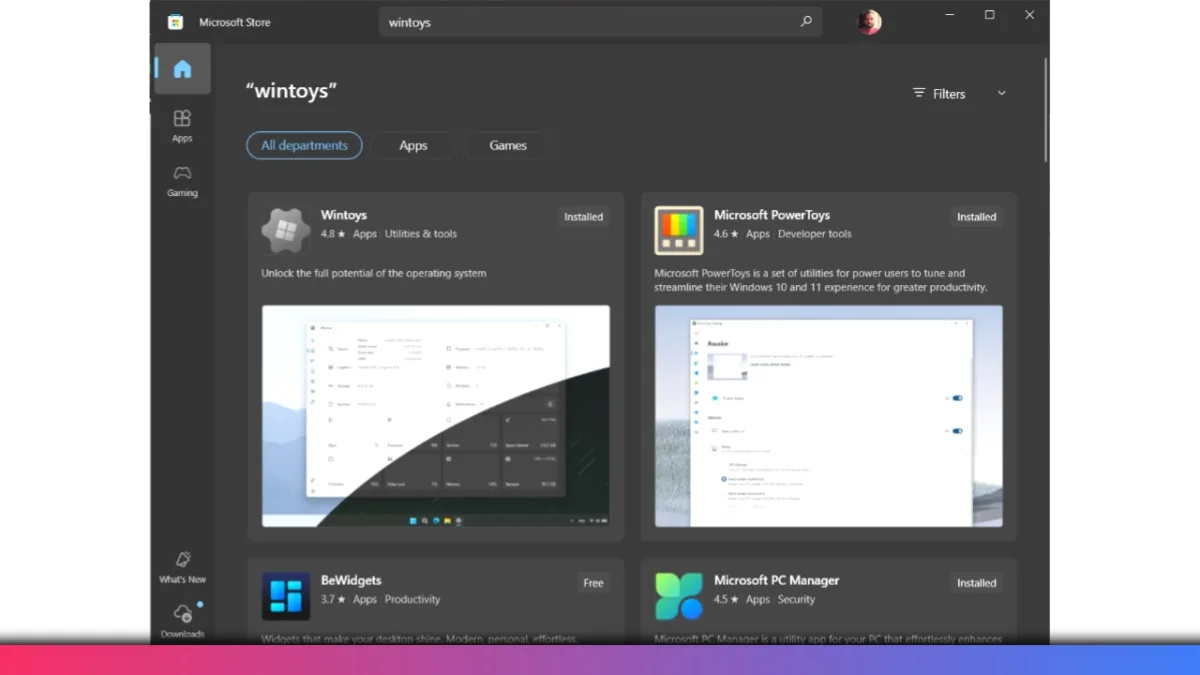
You can simplify your Windows 11 experience with Wintoys, a free app available straight from the Microsoft Store. Just search “Wintoys,” click install, and launch it. The process is quick with no risky downloads or zip files.
Instant System Overview
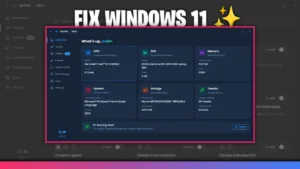
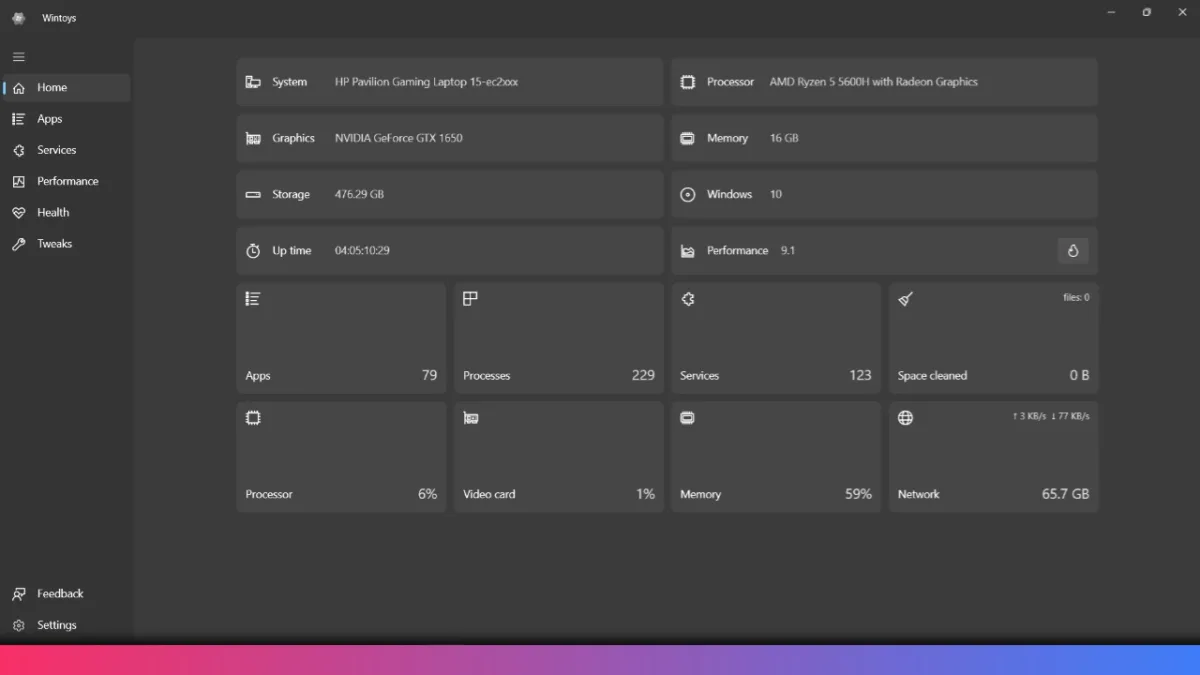
Once you open Wintoys, the modern interface greets you with your PC specs right up front. You’ll see CPU, RAM, uptime, app count, process stats, and even a handy system score at a glance.
Manage Apps in One Place
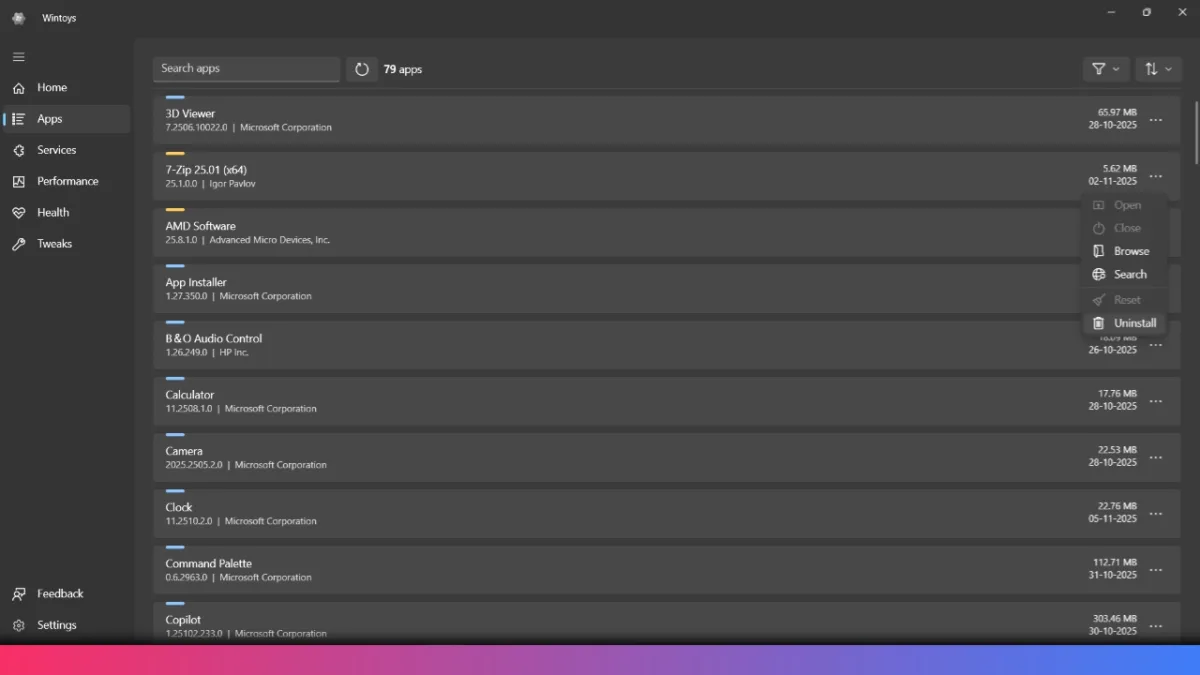
Wintoys lists every installed app, even the hidden ones. You can sort apps by name or size and filter between modern and classic. To uninstall a stubborn built-in app, just pick it, click uninstall, and remove it in seconds. There’s no PowerShell or admin hassle involved.
Control Services for Speed
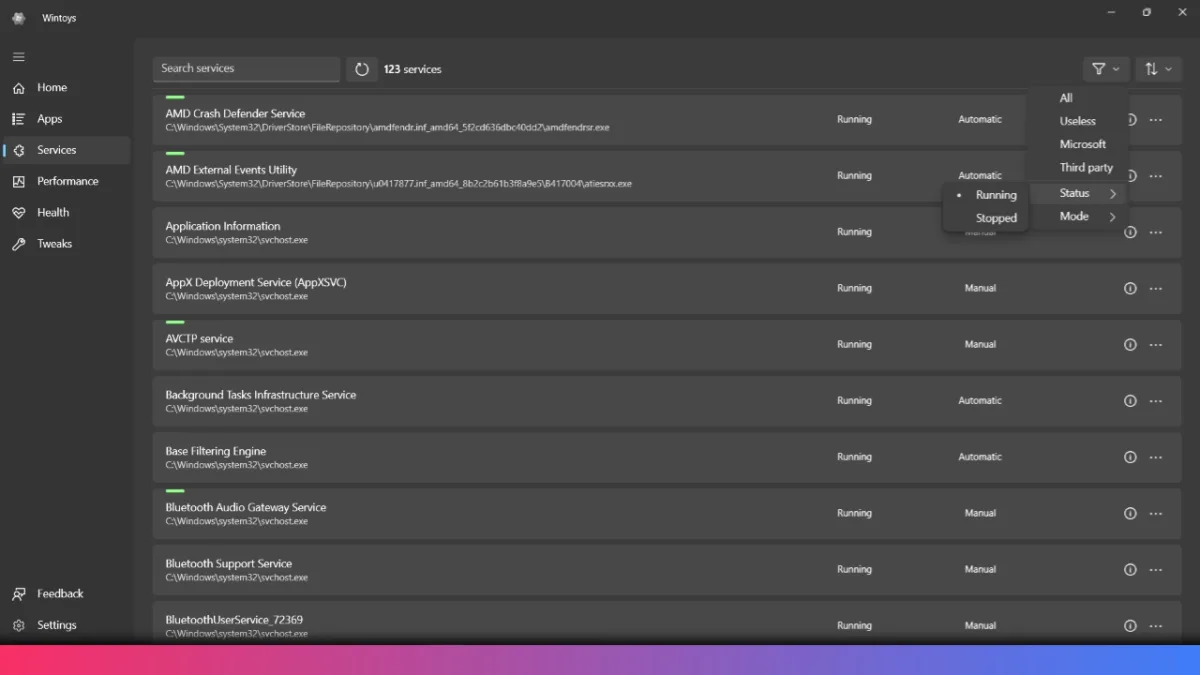
Explore the services tab to view all background processes, including those Windows hides by default. Stop or start any service by tapping three dots, and use the “search on web” option to learn about them before making changes. Wintoys automatically identifies “useless” services you can safely disable for a faster PC. You can also filter by Microsoft-only or high RAM usage and stop anything slowing you down.
Performance and Startup Tweaks
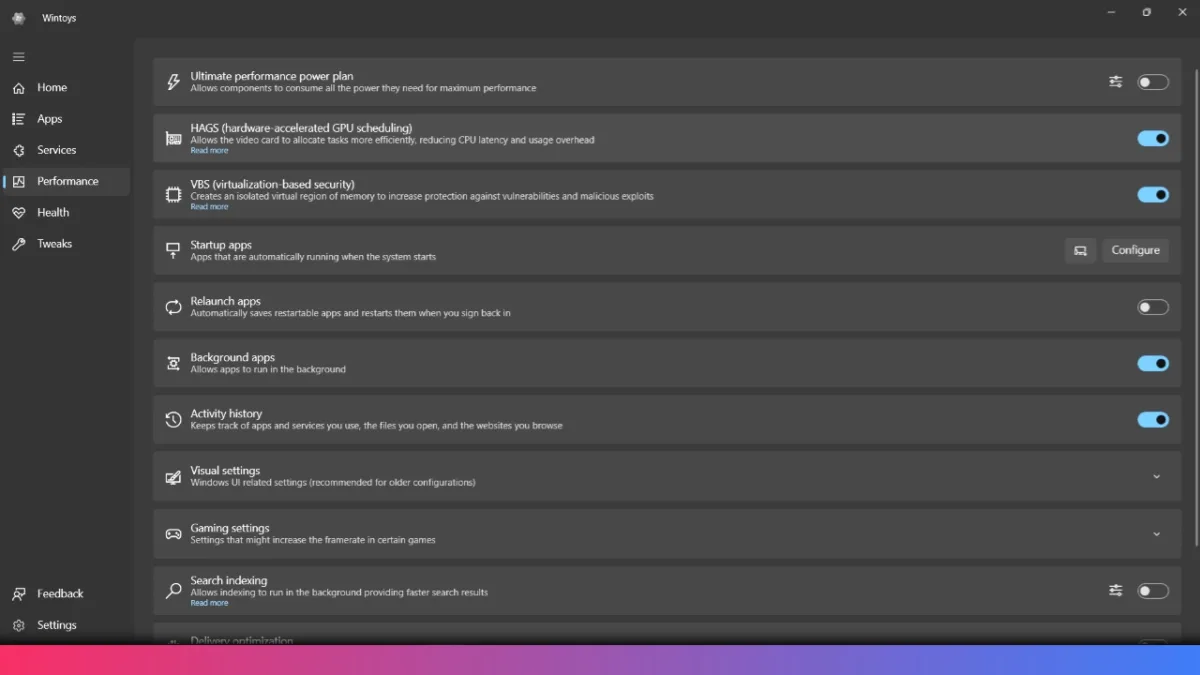
The performance tab is a must-try. You can enable the ultimate performance plan instantly, switch startup apps, and monitor boot time to see real improvements. Additionally, tweak high-assurance settings (HAS) and virtualization for better protection based on your hardware. Also, disable search indexing and Delivery Optimization as they slow down performance.
Smart Cleanup and System Health
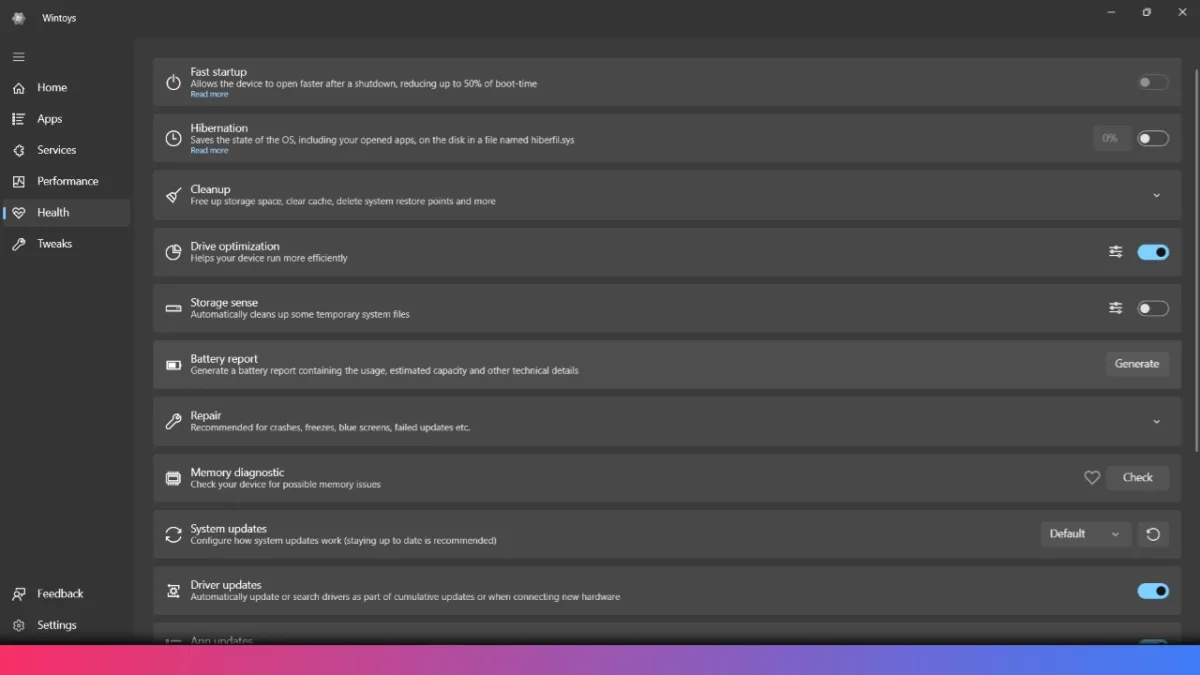
Wintoys gives you the best tools to clean your PC. Just tap the cleanup section, choose what to remove (storage, temp files, cache), and free up gigabytes instantly. Fast startup is another highlight here, letting your PC boot much quicker. However, it also prevents your PC from completely shutting down. You can also fix common issues like corrupted files or update errors with a few clicks, keeping your machine healthy.
Customize, Protect, and Remove Bloat
Head to the tweaks tab to personalize everything, ramp up wallpaper quality to 100%, configure privacy, and even turn off unwanted ads. You’ll discover deeper system controls, including clipboard management and advanced notification options.
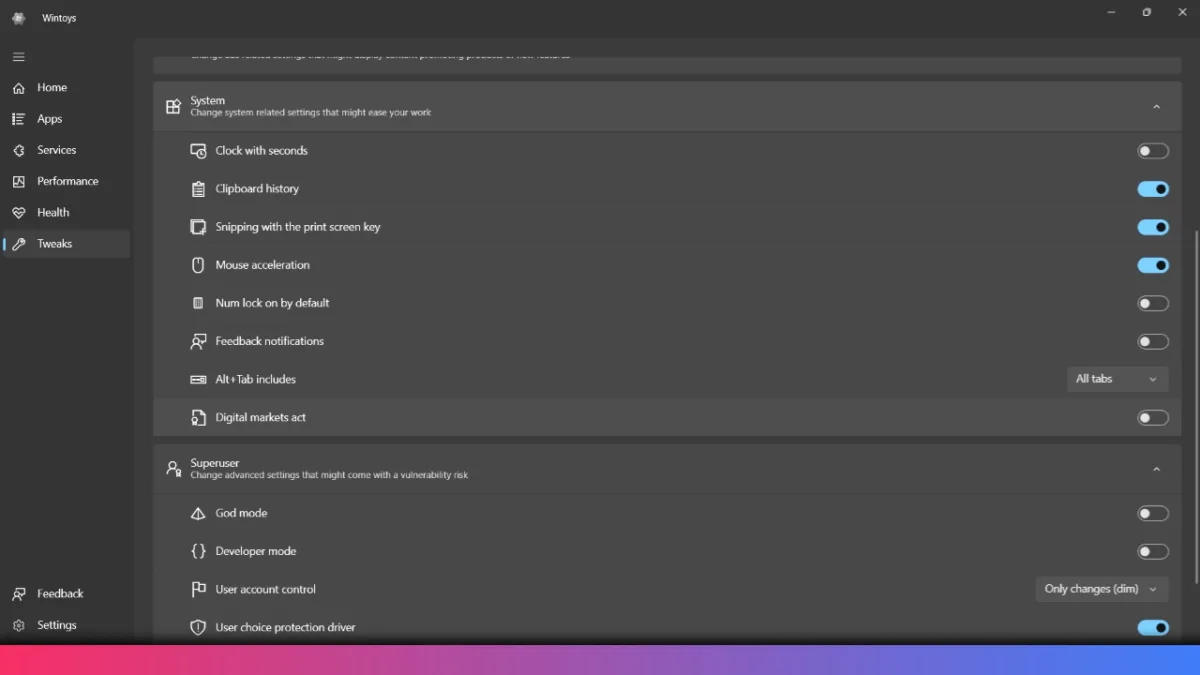
Digital Markets Act unlocks extra removal powers. After enabling it, restart your PC, and you’ll gain the ability to uninstall core apps, including Microsoft Edge and the Microsoft Store. Follow simple on-screen steps to complete the removal without the need for scripts or registry edits.
More System Tweaks
Here you can tweak the Windows built-in programs and settings like File Explorer, Start Menu, Desktop, etc. Like in File Explorer, you should enable important options like check boxes, extensions, the default app opening page, etc.These options are otherwise hidden among the crowd. It also lets you disable telemetry permissions tied to ads, protecting your privacy.
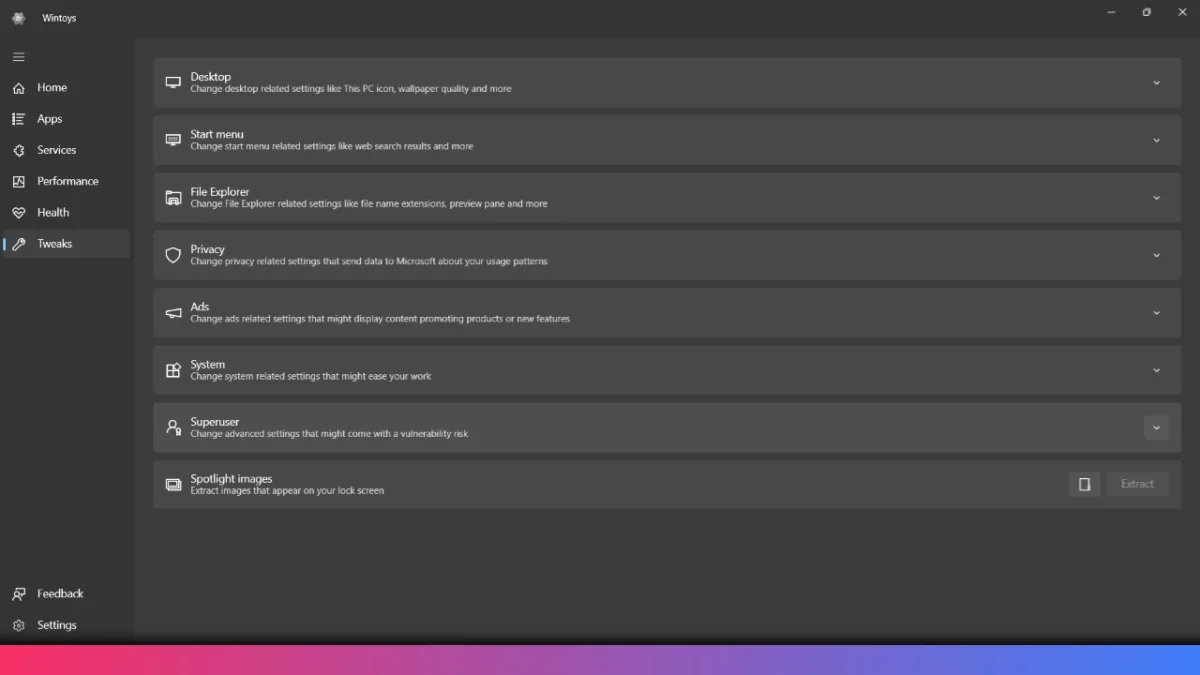
Another neat trick is extracting Windows Spotlight wallpapers directly—a fresh way to personalize your desktop with beautiful, rotating art.
ALSO CHECK OUT:
- PhonePe UPI Rolls Out on Nokia and HMD Feature Phones: Full Device List
- UPI on HMD, Nokia Feature Phones Will Stop Working After August 1
- How to Play Brown Dust 2 on Linux Using Heroic Games Launcher
- Google’s Leaked “Aluminium OS” Could Be the Biggest Android Shift in Years
- How to Install & Play Neverness to Everness on Linux Using Steam and Proton
Final Thoughts
Wintoys packs everything needed to optimize, clean, customize, and truly debloat Windows 11 in one easy tool. You can remove hidden system apps, manage startup and performance, reclaim disk space, boost privacy, and even uninstall Microsoft Edge in just a few steps.