
If your Windows PC has been:
- freezing randomly
- crashing during normal use
- slowing down for no reason
- losing internet access
- or just acting unstable lately
…you may not need to reinstall Windows or download another “PC cleaner” app.
Windows already includes several powerful built-in repair tools that can fix many common issues entirely on their own. And surprisingly, most people never use them.
Some of these commands can:
- repair corrupted system files
- fix broken networking
- Check SSD or hard drive health
- Identify battery drain problems
- and even detect faulty RAM
Before using any of them, open Command Prompt properly:
- Open the Windows search bar
- Type
cmd - Right-click Command Prompt
- Choose Run as administrator
Now let’s go through the most useful ones.
1. Update All Installed Apps at Once
One of the most overlooked causes of Windows problems is outdated software.
Apps can conflict with each other, break compatibility, or cause stability issues if they haven’t been updated properly. Windows includes a package manager called Winget that can update supported apps automatically.
Type:
winget upgrade --all
This command checks for available updates and installs them automatically.
You can also preview available updates first:
winget upgrade
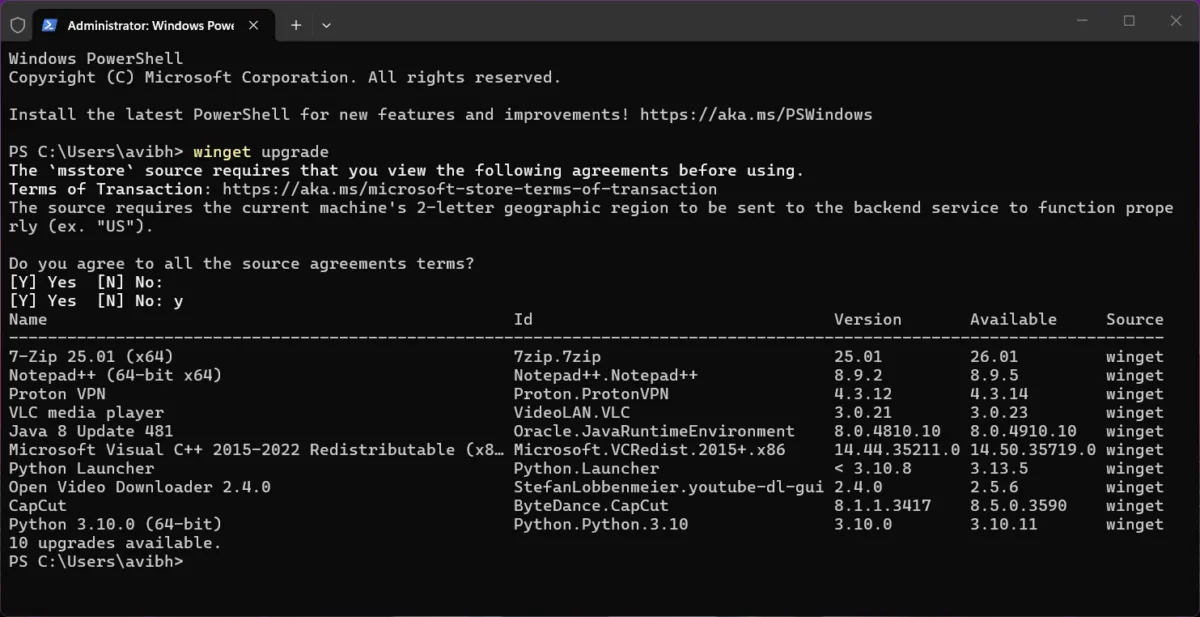
This is especially useful for:
- browsers
- media apps
- developer tools
- utilities
- and many third-party applications
Winget is officially developed by Microsoft and is included in modern versions of Windows 10 and Windows 11 through App Installer.
2. Repair Corrupted Windows System Files
If Windows files become damaged, strange issues can start appearing:
- crashes
- missing functions
- startup problems
- random instability
The System File Checker scans protected Windows files and replaces corrupted ones automatically.
Run:
sfc /scannow
The scan may take several minutes.
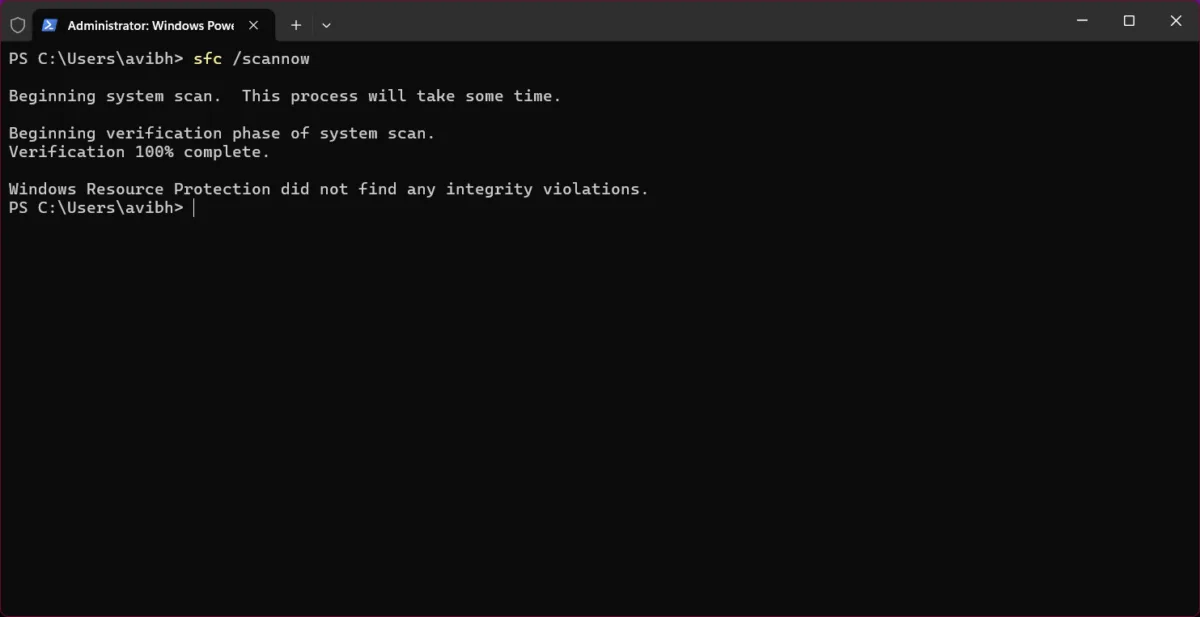
You’ll usually see one of these results:
- No integrity violations found
- Corrupted files repaired
- Some files could not be repaired
If Windows says it could not repair everything, the next command becomes important.
Microsoft officially recommends SFC for repairing corrupted Windows system files.
3. Repair the Windows Image Store With DISM
Sometimes SFC fails because the backup files Windows relies on are also corrupted.
That’s where DISM comes in.
DISM repairs the Windows image itself and can download clean files directly from Microsoft servers.
Run:
DISM /Online /Cleanup-Image /RestoreHealth
This can take:
- 10 minutes
- 20 minutes
- or sometimes longer
After it finishes:
- Restart your PC
- Run
sfc /scannowagain
These two tools work best together.
Microsoft officially documents DISM as a recovery tool for corrupted Windows images and servicing issues.
4. Scan Your Drive for Errors and Bad Sectors
If your PC:
- freezes frequently
- corrupts files
- becomes extremely slow
- or struggles during boot
…your drive may have file system errors or damaged sectors.
CHKDSK scans the drive and attempts repairs automatically.
Run:
chkdsk /r
Because Windows uses the system drive, it will usually prompt you to schedule the scan for the next restart.
Press:
Y
…and reboot the PC.
Important: Modern SSDs generally don’t benefit from excessive CHKDSK usage the same way older hard drives did, so this tool is best used when actual problems appear rather than constantly running it.
5. Fix Strange Internet Problems
Sometimes your internet appears connected, but:
- Websites refuse to load
- Pages load incorrectly
- Or apps suddenly lose access
Windows stores DNS information locally, and corrupted or outdated entries can cause problems.
First run:
ipconfig /flushdns
Then:
ipconfig /release
And finally:
ipconfig /renew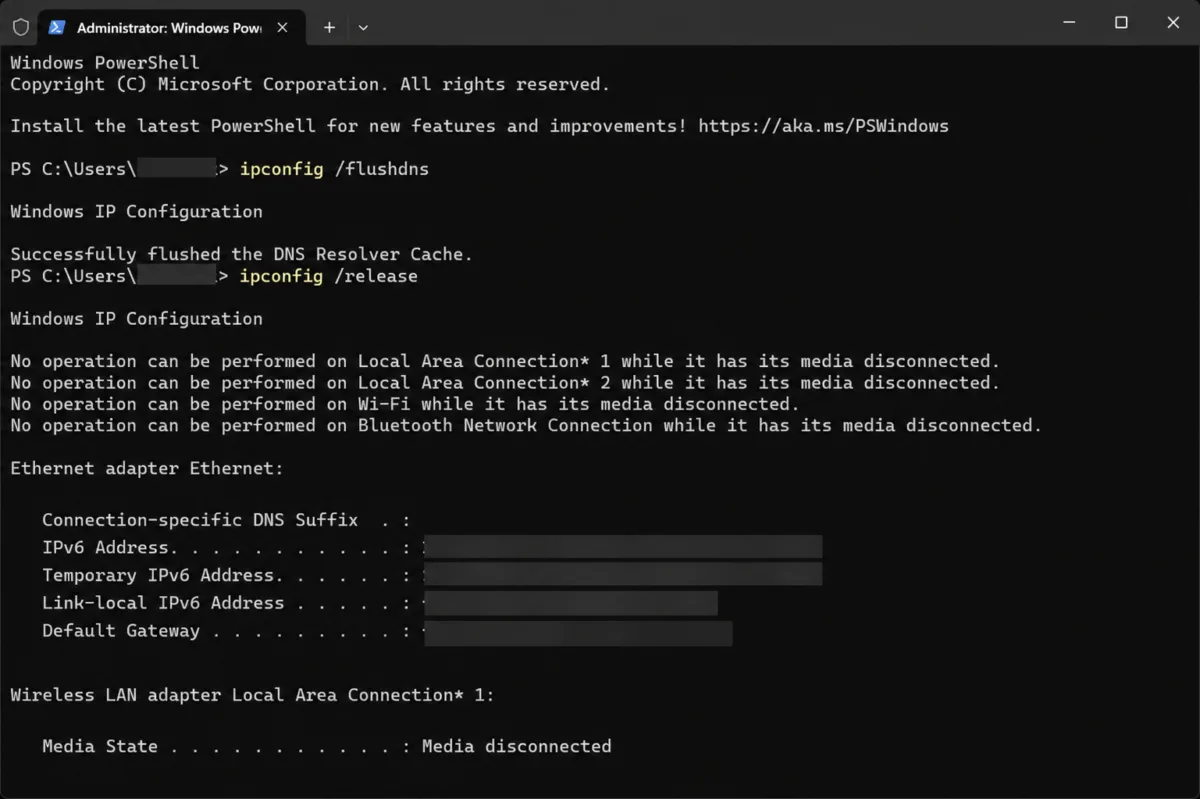
This combination:
- clears DNS cache
- drops the current IP
- requests a fresh network configuration
Honestly, this fixes a surprising number of “internet is connected but broken” situations.
6. Completely Reset Windows Networking
If basic internet fixes don’t help, Windows networking itself may be corrupted.
These commands reset the network stack and Winsock configuration.
Run these one at a time:
netsh winsock reset
netsh int ip reset
netsh int tcp reset
Afterward:
Restart your PC.
This can help fix:
- random disconnects
- broken downloads
- apps refusing internet access
- corrupted TCP/IP settings
Microsoft still documents
netsh winsock resetas a valid repair step for certain network problems in Windows.
7. Check SSD or Hard Drive Health
Modern drives monitor their own health internally.
Windows PowerShell can display that information directly.
Run:
powershell "Get-PhysicalDisk | Format-Table FriendlyName, MediaType, HealthStatus, OperationalStatus"
You’ll see:
- drive type
- health status
- operational condition
If a drive reports anything other than “Healthy,” back up important data immediately.
Important! This method provides a quick health overview, but it may not detect every failing SSD or hard drive. Dedicated SMART tools from manufacturers can sometimes provide more detailed diagnostics.
8. Find and Force-Close Problematic Apps
Sometimes an app silently consumes:
- RAM
- CPU
- or disk usage
…and slows the entire PC down.
Run:
tasklist
This shows all active processes and their memory usage.
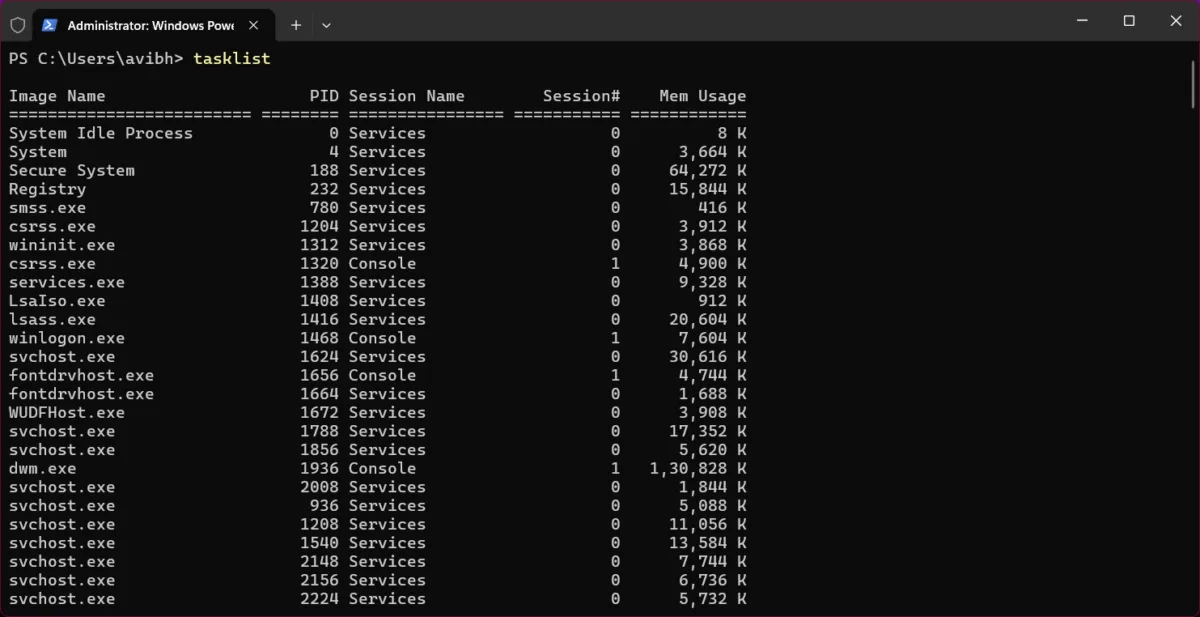
If an app freezes or refuses to close:
- Find its PID number
- Run:
taskkill /PID NUMBER /F
Replace NUMBER with the actual process ID.
You can also close apps by name:
taskkill /IM appname.exe /F
Useful when the Task Manager itself becomes unresponsive.
9. Generate a Hidden Windows Battery and Power Report
Laptop battery problems are often caused by:
- bad drivers
- power settings
- USB wake issues
- background devices
Windows includes a surprisingly detailed hidden energy report tool.
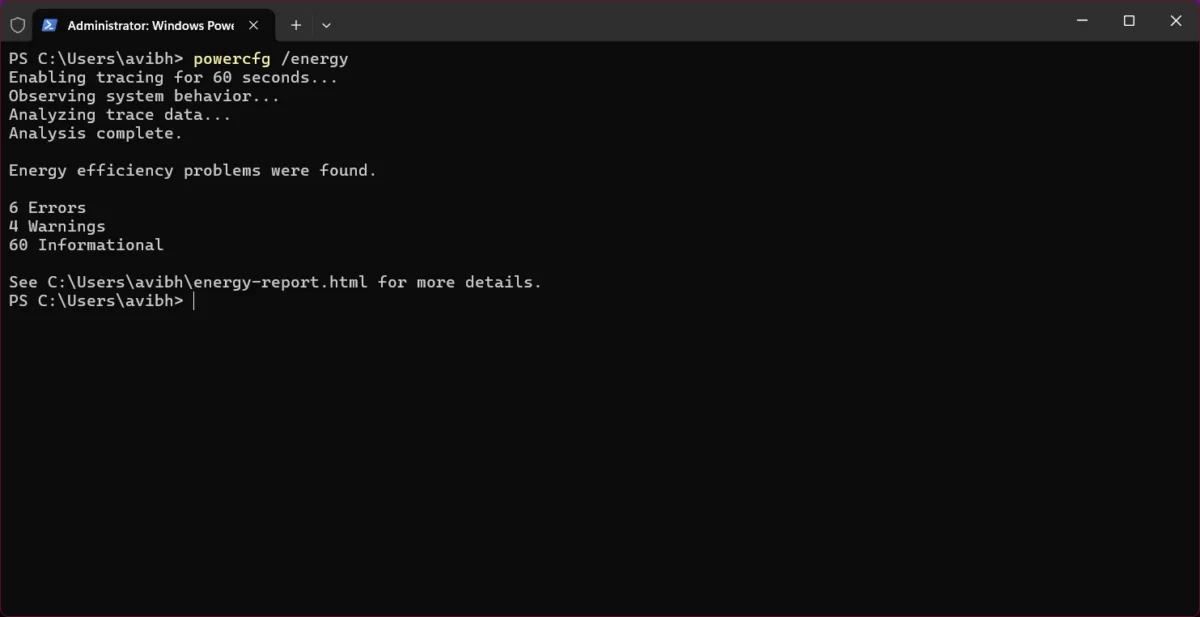
Run:
powercfg /energy
Windows monitors the system for about 60 seconds and then generates an HTML report.
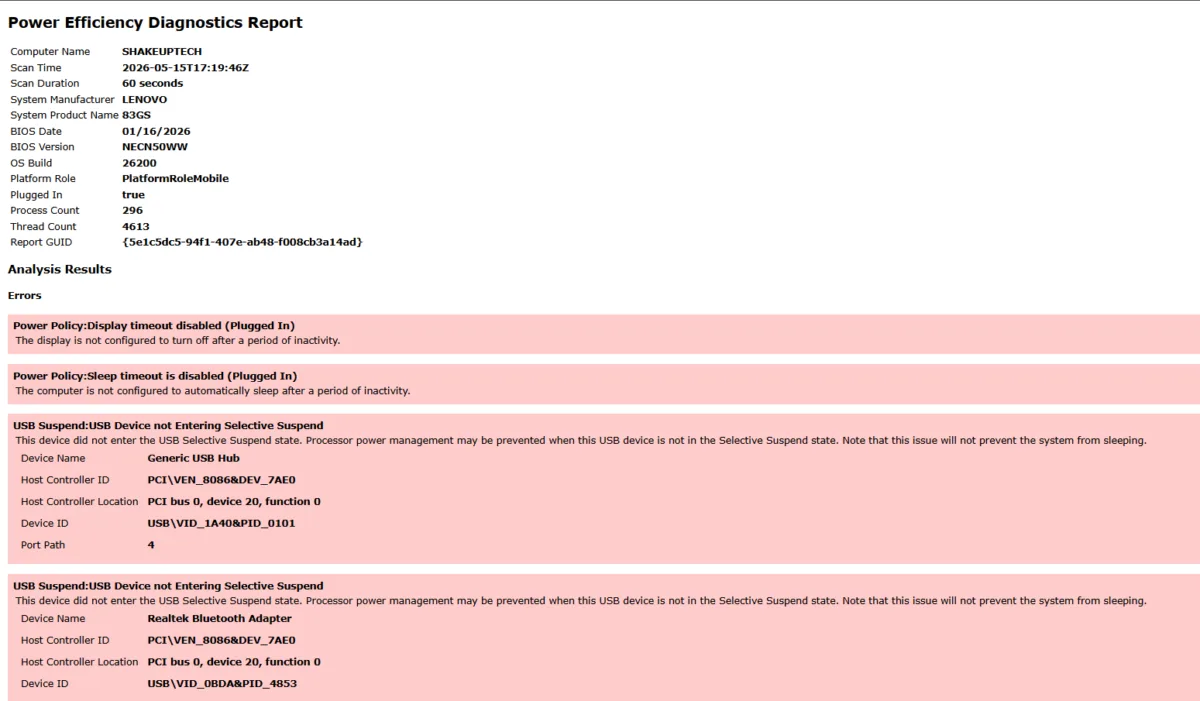
The report can reveal:
- devices preventing sleep
- battery drain issues
- problematic drivers
- inefficient power settings
For laptop users, this tool is honestly extremely useful.
It is an official Microsoft Power Diagnostics utility included in Windows.
10. Check Your RAM for Hidden Problems
Faulty RAM can cause:
- random crashes
- blue screens
- corrupted files
- apps closing unexpectedly
And many people never realize that memory is the real issue.
Windows includes a built-in memory tester:
- Open Start
- Type:
mdsched
- Choose:
- restart immediately
or - schedule for next boot
Windows will test your RAM before startup.
If errors appear, the issue is likely hardware-related rather than Windows itself.
These Tools Are Already Built Into Windows
A lot of people immediately:
- reinstall Windows
- Buy “PC repair” software
- or assume their system is permanently broken
But honestly, Windows already includes several powerful recovery and diagnostic tools that can solve many common problems without installing anything extra.
And while these commands will not magically fix every issue, they are often the fastest place to start before taking more drastic steps.
- UPI on HMD, Nokia Feature Phones Will Stop Working After August 1
- How to Play Brown Dust 2 on Linux Using Heroic Games Launcher
- Google’s Leaked “Aluminium OS” Could Be the Biggest Android Shift in Years
- How to Install & Play Neverness to Everness on Linux Using Steam and Proton
- Before You Reinstall Windows, Try These 10 Built-In Fixes