
You can easily play Destiny: Rising on PC, even though the game is an official mobile release. Developers have made sure the game is accessible by partnering with emulator platforms like MuMu Player. This emulator runs the Android OS on Windows or macOS, bringing full access to the Google Play Store. And in turn, Destiny: Rising’s features onto your desktop.

Download and Install Destiny: Rising on PC
To start playing Destiny: Rising on PC, head to Mumuplayer’s website or use the link on the official Destiny: Rising website. Download the app for Windows or Mac, launch it, and follow the quick installation process. At the top of the emulator, create a new Android device instance, then adjust device settings (such as graphics renderer; Vulkan works smoothly, but DirectX is available if needed).
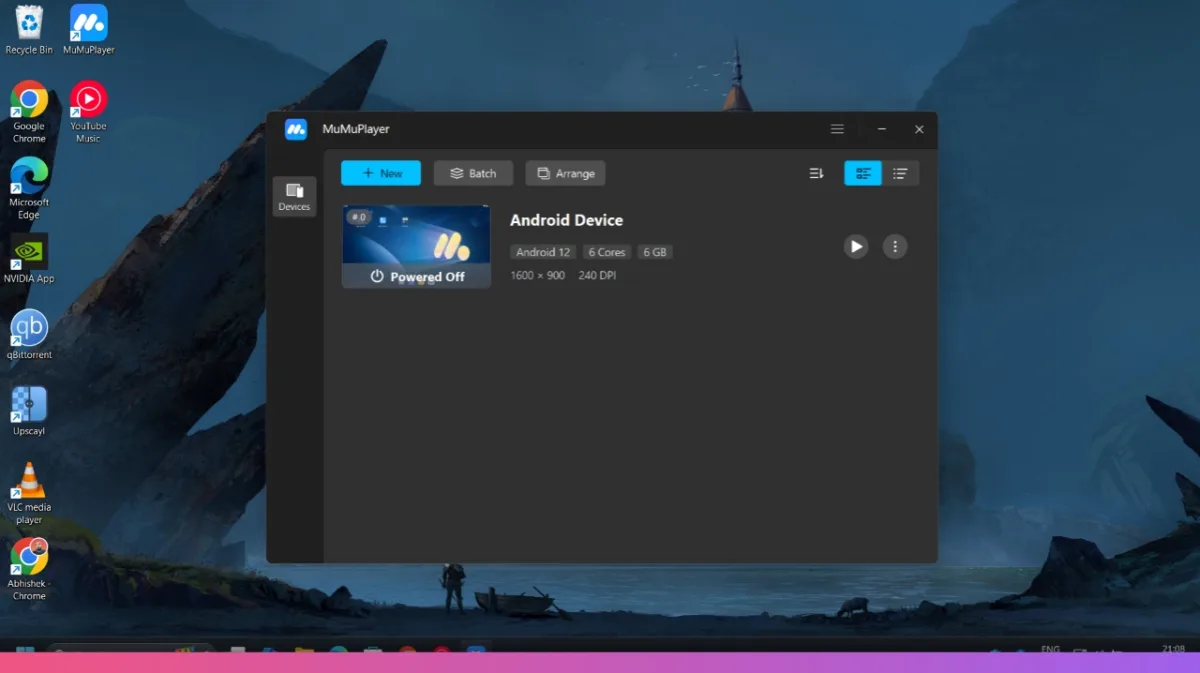
Now, allocate enough RAM (6GB if you have 16GB RAM) and CPU for the best performance. Lastly, set your preferred resolution to FHD or 900p should be enough. Most players select tablet emulation, which allows for sharper graphics and supports up to true 4K options.
ALSO READ: Enshrouded Water Update Reveals Floating Islands, Unique Furniture, and Flowing Water
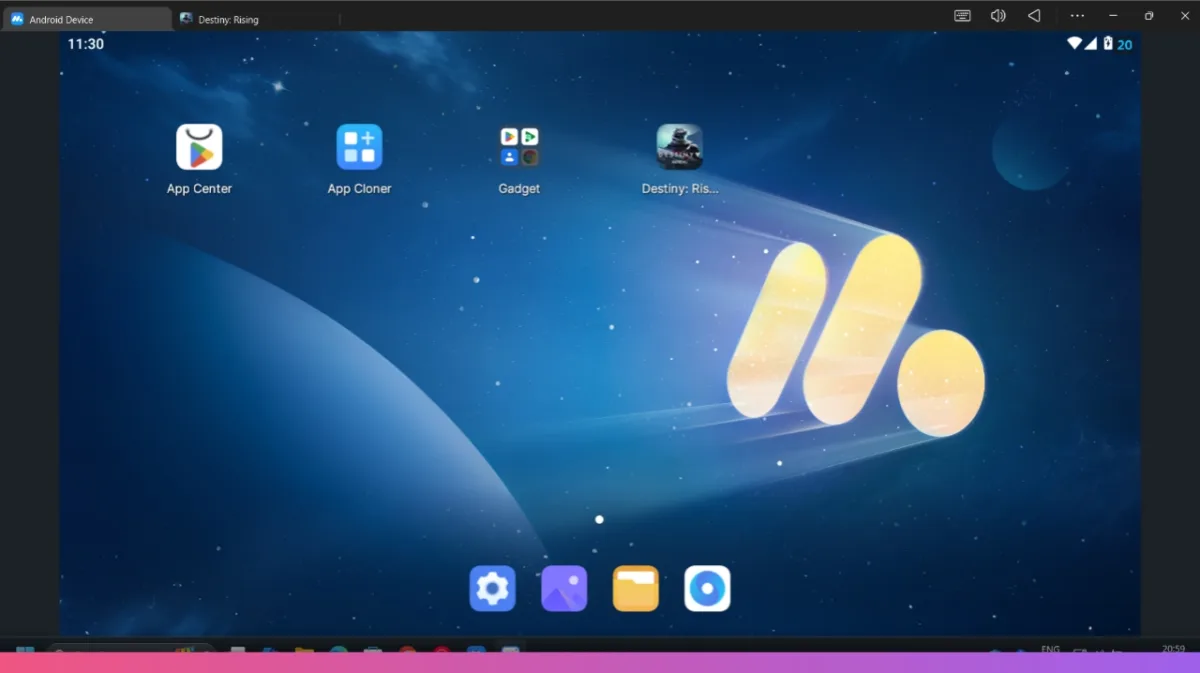
Launching the Game and Best Settings
After the emulator setup, use the App Center to find Destiny: Rising, install it, and sign in with your Google account. Additionally, you can tweak in-game settings to suit your hardware, such as frame rate caps and graphics performance. The game recognizes your keyboard, mouse, and even compatible controllers for native play. So you can jump into the action right away.

Additional Tips for a Smooth Experience
Before launching the game, close any unnecessary background apps to improve stability and reduce lag. Adjust performance options in the emulator settings, like RAM allocation, graphics card usage. Moreover, installing on an SSD will result in faster load times. Use F11 for full-screen mode and explore key-mapping features to customize your controls easily.
- ColorOS 17 Update Schedule: 50+ Oppo Phones and Expected Rollout Dates
- PhonePe UPI Rolls Out on Nokia and HMD Feature Phones: Full Device List
- UPI on HMD, Nokia Feature Phones Will Stop Working After August 1
- How to Play Brown Dust 2 on Linux Using Heroic Games Launcher
- Google’s Leaked “Aluminium OS” Could Be the Biggest Android Shift in Years

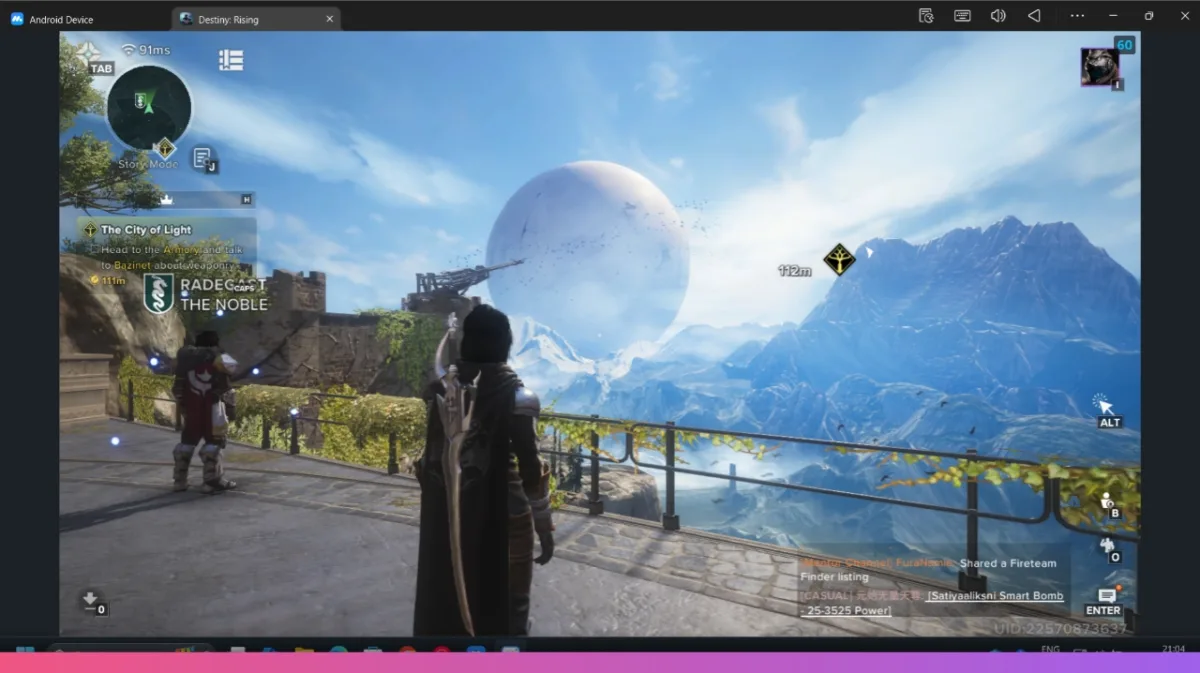
Destiny: Rising on PC | In-Game Experience
Once Destiny: Rising on PC loads, you’ll be greeted with a similar interface to that is for smartphones. The story and gameplay will feel right at home with mouse and keyboard or your favorite controller. Moreover, PC players have access to high frame rates and detailed graphics. And can enjoy all events, quests, and challenge modes alongside mobile users.
Destiny: Rising on PC is a flexible way to play the latest Destiny game if you’d rather skip gaming on your phone. Following these steps ensures a smooth installation and a great experience every time.