
Neverness to Everness is already attracting a lot of attention thanks to its anime-style open world and futuristic city setting. And surprisingly, getting it running on Linux right now is much easier than many players expected.

Normally, installing brand-new online games on Linux can become a mess involving terminal commands, Wine tweaks, and compatibility issues. But in this case, the setup process is actually fairly simple if you already use Steam and Proton.
The first thing you need is the official Windows EXE installer from the Neverness to Everness website. Download the installer and save it somewhere easy to access, like your Downloads folder.
Best Proton Version for Neverness to Everness on Linux
After that, you will also need a compatible Proton version. The easiest method right now is using ProtonPlus, which lets you download custom Proton builds directly without dealing with complicated manual setup.
Inside ProtonPlus, you will see multiple Proton versions available. It is recommended to use the latest DW Proton build, since it appears to have proper compatibility support for Neverness to Everness at the moment.
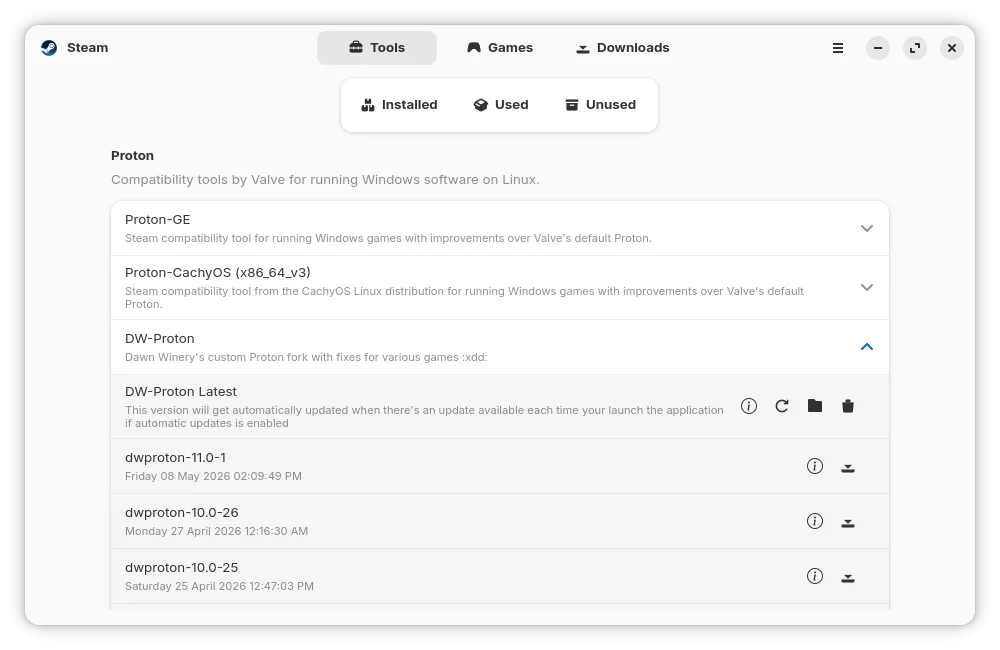
Once Proton is installed, open Steam and click on:
Games > Add a Non-Steam Game to My Library.
From there, press Browse and locate the Neverness to Everness EXE installer you downloaded earlier. Select it and add it to your Steam library.
Before launching the installer, there is one important step.
- Right-click the added installer inside Steam and open:
- Manage > Properties > Compatibility.
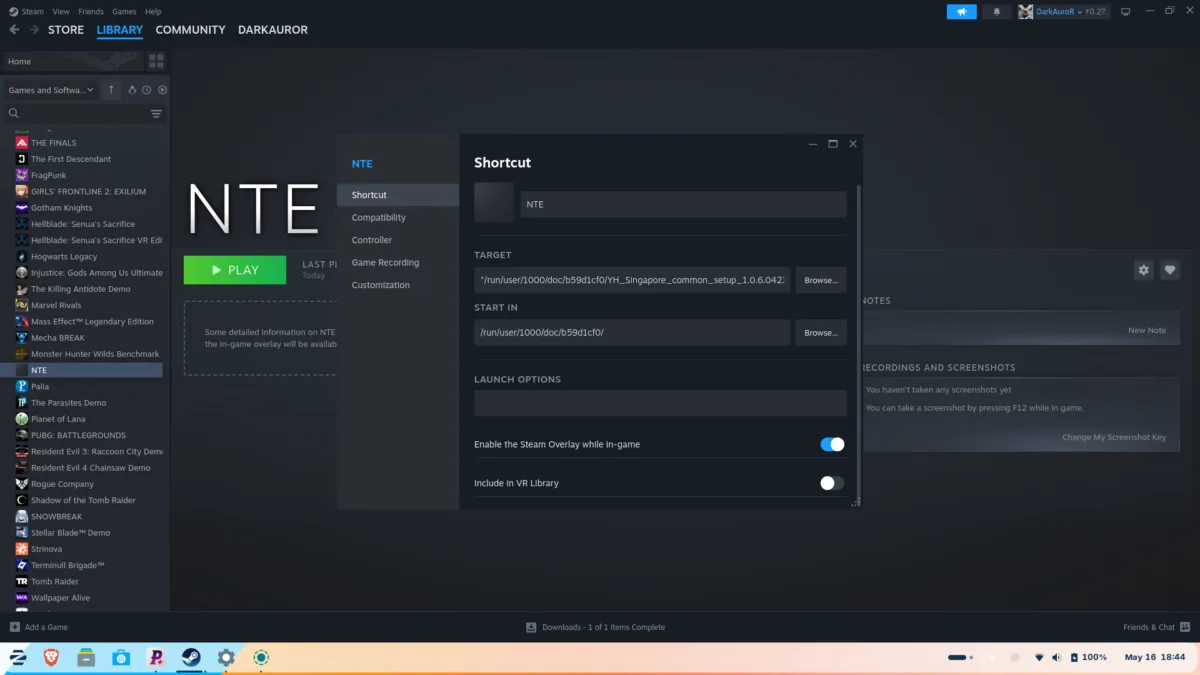
Enable compatibility mode and choose the DW Proton version you installed earlier. If you downloaded Proton while Steam was still running, you may need to restart Steam before the new Proton version appears properly.
At this stage, rename the installer entry inside Steam to something cleaner, like:
- NTE
- or Neverness to Everness
This part is optional, but it makes the setup easier to organize later. Now launch the installer normally through Steam.
How to Play Neverness to Everness on Linux
The launcher setup should appear just like it would on Windows. Choose your language and continue with the installation process.
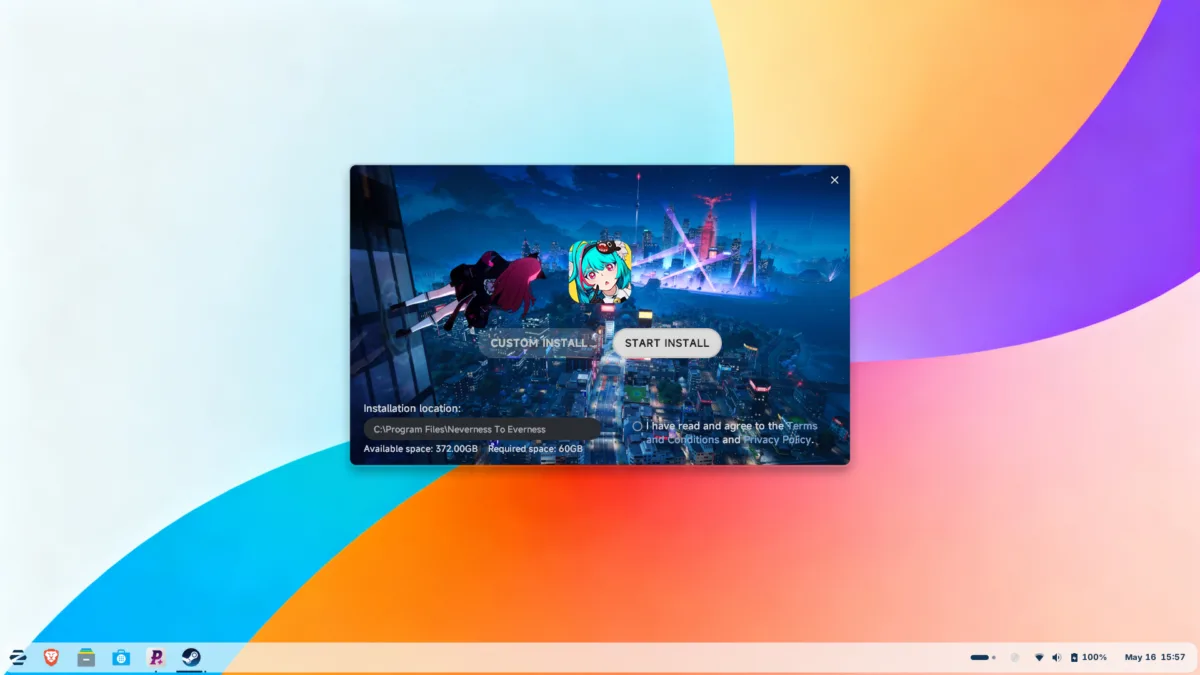
Once the launcher finishes downloading and opens for the first time, close it completely before continuing. This step matters because Steam still points to the installer EXE rather than the actual launcher executable.
Now comes the part that confuses most Linux beginners. Open your home folder and navigate to:
~/.steam/steam/steamapps/compatdata
In compatdata, locate the most recently modified folder. That folder belongs to Neverness to Everness.
If you installed Steam using Flatpak on Zorin OS or other Linux distributions, first enable hidden folders in the file manager by pressing Ctrl+H. Then open the .var folder in your Home directory and navigate to app > com.valvesoftware.Steam > .local > share > Steam. This will take you to the main Steam folder, where you can access the steamapps directory, which contains installed games and Proton data.
Open it and continue into:
pfx/drive_c/Program Files
Then, locate the Neverness to Everness installation folder and copy the launcher location.
How to Launch Neverness to Everness Using Steam Proton
Go back into Steam and replace the original installer path with the actual game launcher executable path. After saving the new launcher path, start the game again through Steam.
This time, instead of reopening the installer, the actual Neverness to Everness launcher should appear correctly. From there, simply press Install and let the game begin downloading normally.
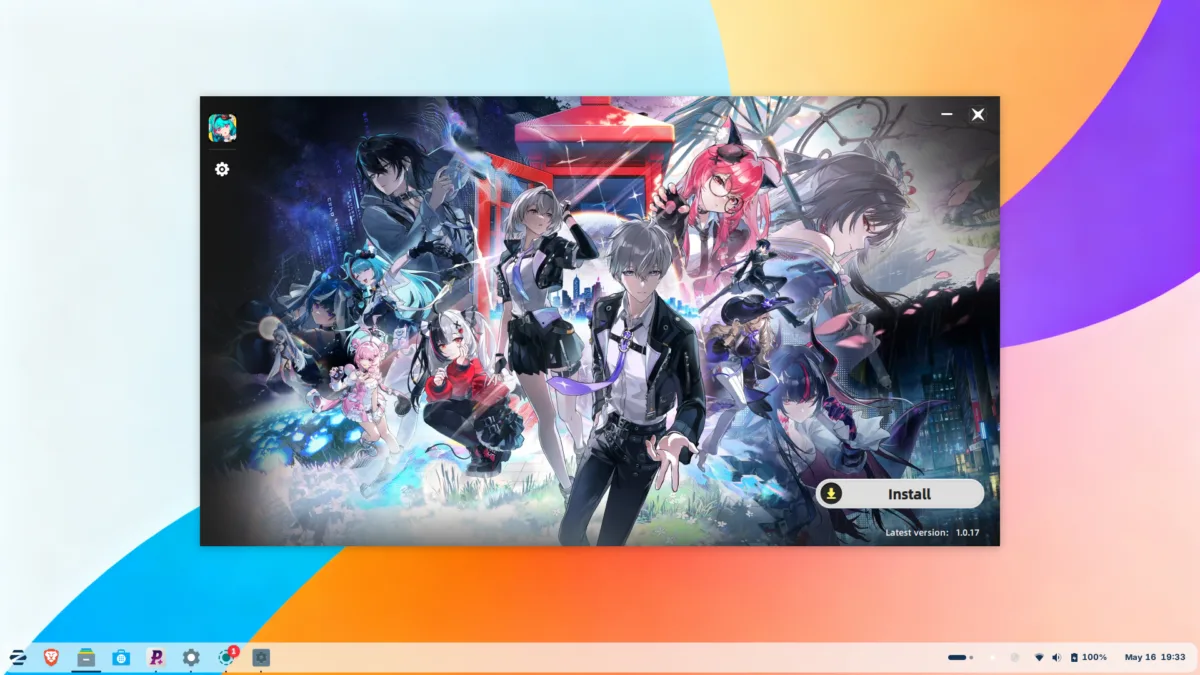
At the moment, compatibility still depends on:
- server status
- launch updates
- Proton improvements
- and possible anti-cheat behavior
But based on current testing, the launcher itself appears to function properly on Linux already.
Honestly, Linux gaming has improved massively over the past few years. A setup process like this would have been far more complicated not long ago, but tools like Steam Proton and ProtonPlus are making modern game compatibility much easier for normal users now.
- UPI on HMD, Nokia Feature Phones Will Stop Working After August 1
- How to Play Brown Dust 2 on Linux Using Heroic Games Launcher
- Google’s Leaked “Aluminium OS” Could Be the Biggest Android Shift in Years
- How to Install & Play Neverness to Everness on Linux Using Steam and Proton
- Before You Reinstall Windows, Try These 10 Built-In Fixes